application · Jun 24, 2026
How to Preserve Excel Formatting in a Web Application
 Matthieu Duchemin
Developer, Keikai.
Matthieu Duchemin
Developer, Keikai.
How to Preserve Excel Formatting in a Web Application
Spreadsheets are more than raw numbers and formulas. A workbook's information and meaning also exists in green and red colors marking negatives and positive trends, thousands separators or bolded subtotals which emphasise and explain the data. Moving that workbook to the web requires the right tools to preserve the meaningful information conveyed by the visual design of the sheet. This article explains why formatting fidelity can be difficult to maintain during the transition to a web browser, and how the Keikai library helps to carry your intent from import to export.
Why do Excel files lose formatting in web applications?
Why do financial applications need high spreadsheet fidelity?
For many business applications, spreadsheet formatting is not merely a presentation detail. Financial reports, regulatory filings, budgeting workbooks, pricing sheets, and operational dashboards often rely on formatting to communicate meaning and guide decision making.
A negative value highlighted in red, a subtotal emphasized in bold, or a currency format applied consistently across a report all help users interpret data correctly. When these visual cues are lost, users must spend additional effort verifying results and may misinterpret important information.
For documents whose layout is part of their business logic — financial statements, regulatory filings, pricing sheets — fidelity is a correctness requirement, not a decorative feature.
This is why spreadsheet fidelity matters when bringing Excel workbooks into a web application. Users expect the browser version to preserve the same visual structure, formatting, and context as the original workbook.
How much do you know about Excel's "formatting"?
The surface reading of a spreadsheet is that it is a set of values and calculation ordered in a grid shape, but it is much more than that. It is a grid of values plus layered presentation metadata. When Keikai imports an Excel file, it converts the file into a server-side book model in which "a book contains one or more sheets which
may contain many cells, styles, fonts, charts, and pictures."
In concrete terms, the Keiaki model preserves cell data (io.keikai.api.model.CellData), styles (io.keikai.api.model.CellStyle, io.keikai.api.model.Color), fonts (io.keikai.api.model.Font).
For example, a single CellStyle stores alignment, border settings, background color, and all other visual data associated with that style.
The visual identify doesn't stop at colors and cell styles. It also include a wide array of visual markers:
- Number formats — currency, percentage, date, and custom format strings that change how a raw value is displayed.
- Fonts — family, size, weight, italic, underline, strikeout, and color [doc: CellStyle]
- Fills and borders — background color and per-edge border type/color (
getBorderTop(),getBorderTopColor(),getBackgroundColor()). - Conditional formatting, merged cells, and column widths / freeze panes — layout-level formatting that lives above the individual cell.
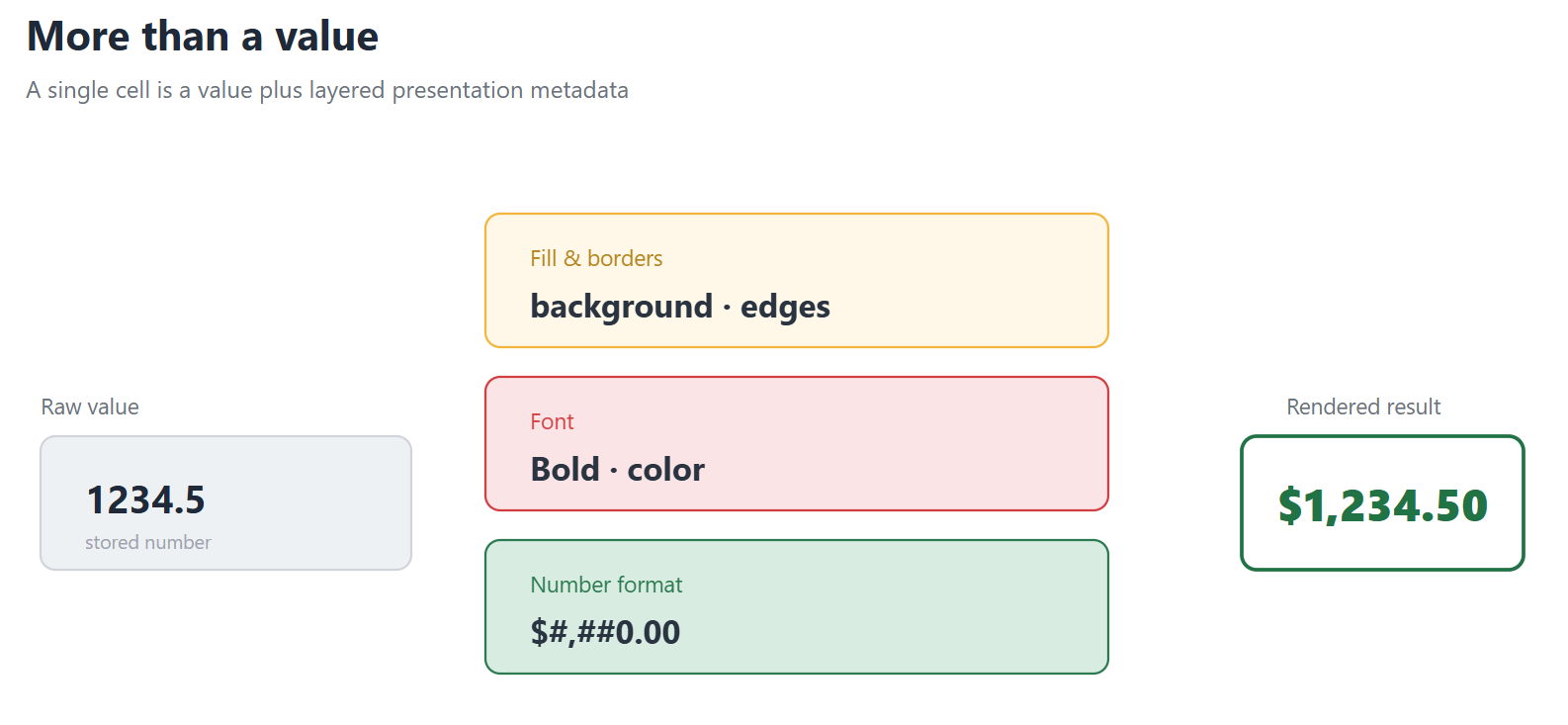
All of these layers are essential in maintaining the imported workbook's visual identity and readability.
Where typical web viewers lose fidelity
Many web "spreadsheet" experiences are really HTML tables or generic data grids pluged directly into an Excel exporter. Those tools tend to serialize raw values and drop the field-level metadata. What if you need the cell containing important data such as IDs, date, or currency formats applied at the column/row/cell level — but your tool's API focuses on raw data values without capturing field-level format annotations? Grid-style components optimize for tabular data, not for spreadsheet fidelity.
A symptom of the same class of problem: components that render to HTML/CSS often cannot full conditional formatting or custom number formats because there is no place in their model to store them.
The cost of broken formatting
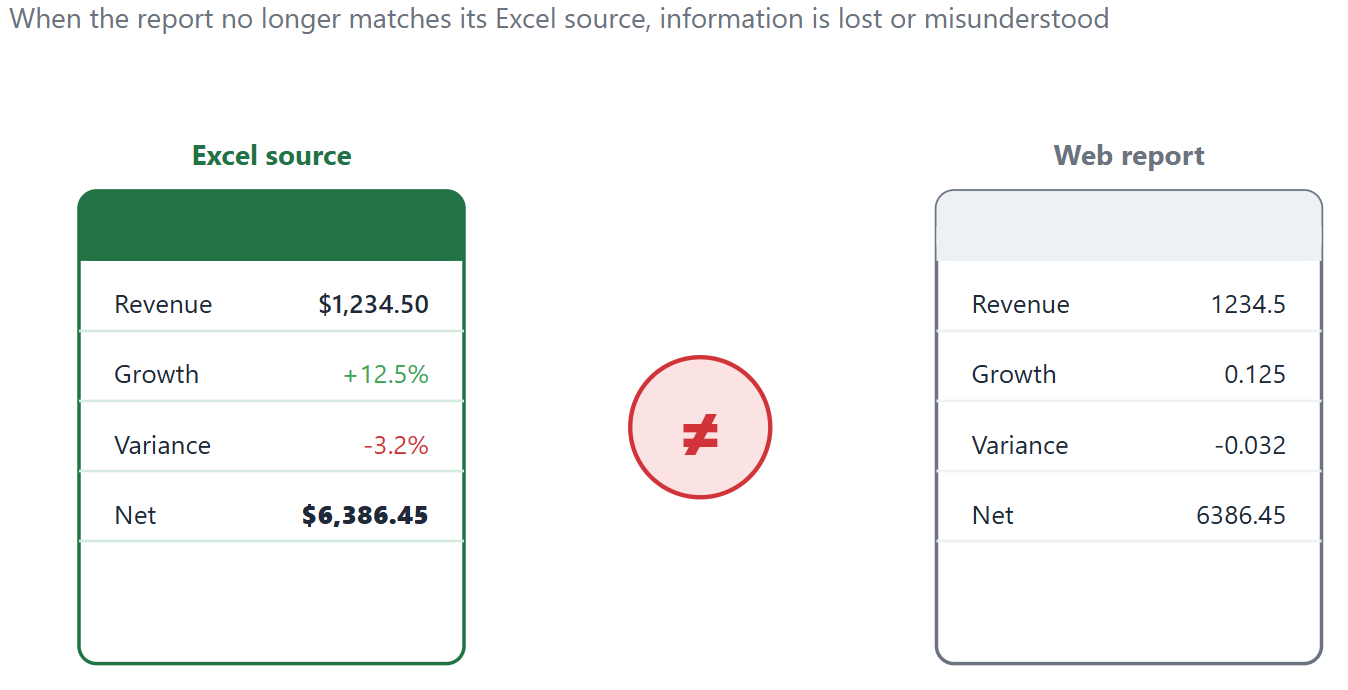
When formatting is dropped, the damage is not just cosmetic. Consider the following real use cases:
- A value shown as 1234.5 instead of $1,234.50 is slower to read and easy to misinterpret.
- A negative number that was meant to be red, or a subtotal that was meant to be bold, loses the visual emphasis the author relied on to inform the viewer with important context.
- A report that no longer matches its Excel source erodes trust and triggers revisions work.
Section 2: How Keikai help to carry visual intent
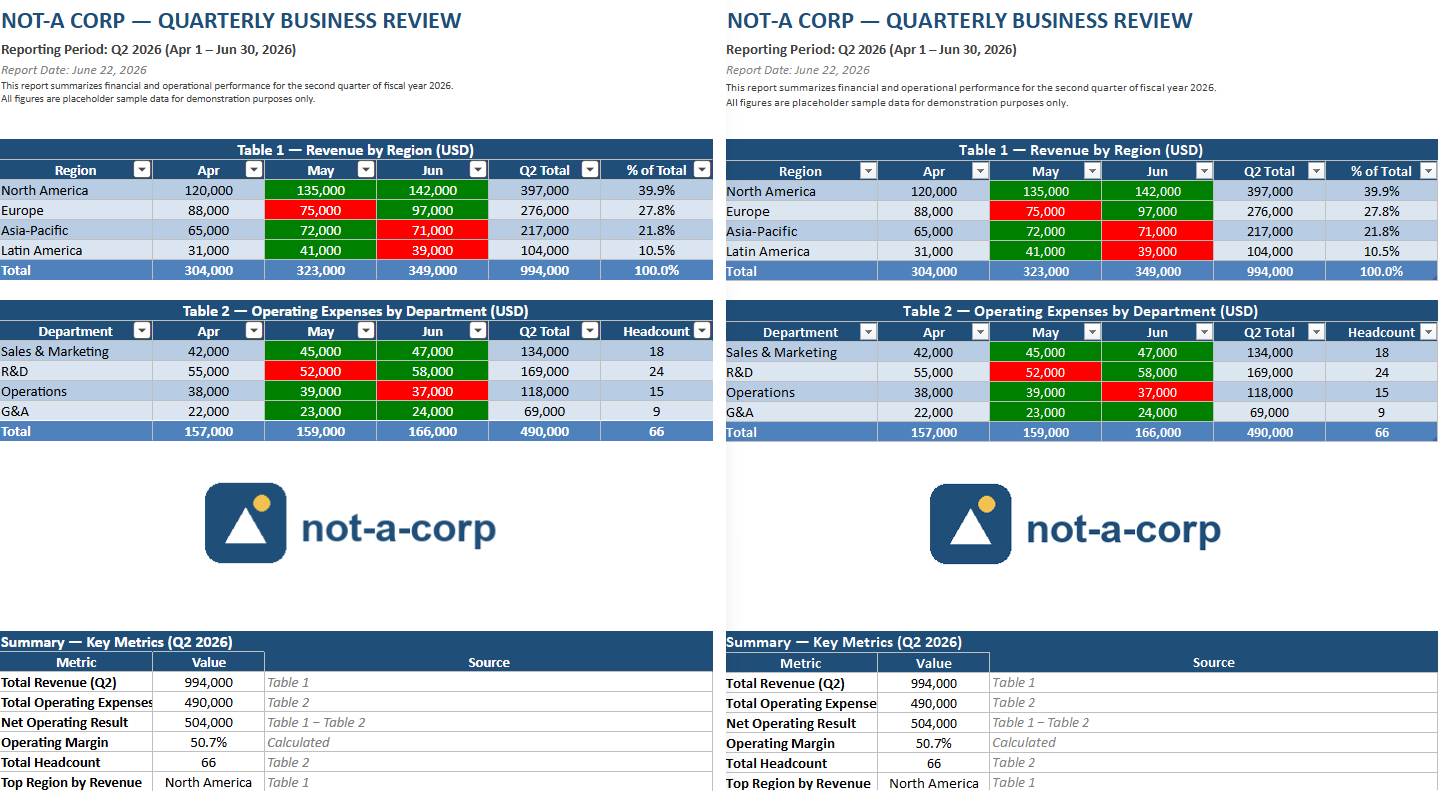
One-to-one cell style model
Keikai does not flatten the workbook into HTML on import. Instead, it parses the spreadsheet into a hierarchy of in-memory objects rooted at io.keikai.api.model.Book, where each sheet retains its cells, its styles, fonts, colors, charts, and pictures.
A Keikai spreadsheet can be imported from an ".xlsx" document in several ways:
- the declarative src attribute (<spreadsheet src="/WEB-INF/books/blank.xlsx" />), which allows direct assignment in the zul file representing the page.
- the programmatic setSrc() method which offers direct control over the document source in Java code.
- the Importer API, where Importer.imports() returns a java Book object which can be assigned to Spreadsheet.setBook(Book) and manipulated for fine control in java code. [doc: Import]
Each cell keeps a full CellStyle. The style object is fully independent of the cell value. You read it or update it back through the Range API — for example:
Range range = Ranges.range(spreadsheet.getSelectedSheet(), rowIndex, columnIndex);
CellStyle style = range.getCellStyle();
That same model lets you modify styling without destroying imported styles:
CellOperationUtil applies changes such as CellOperationUtil.applyAlignment(selection, Alignment.CENTER) and applyBorder(...), and since version 5.3.0 a builder-pattern API clones an existing CellStyle before changing it, preventing accidental style reuse.
Conditional formatting & table styles
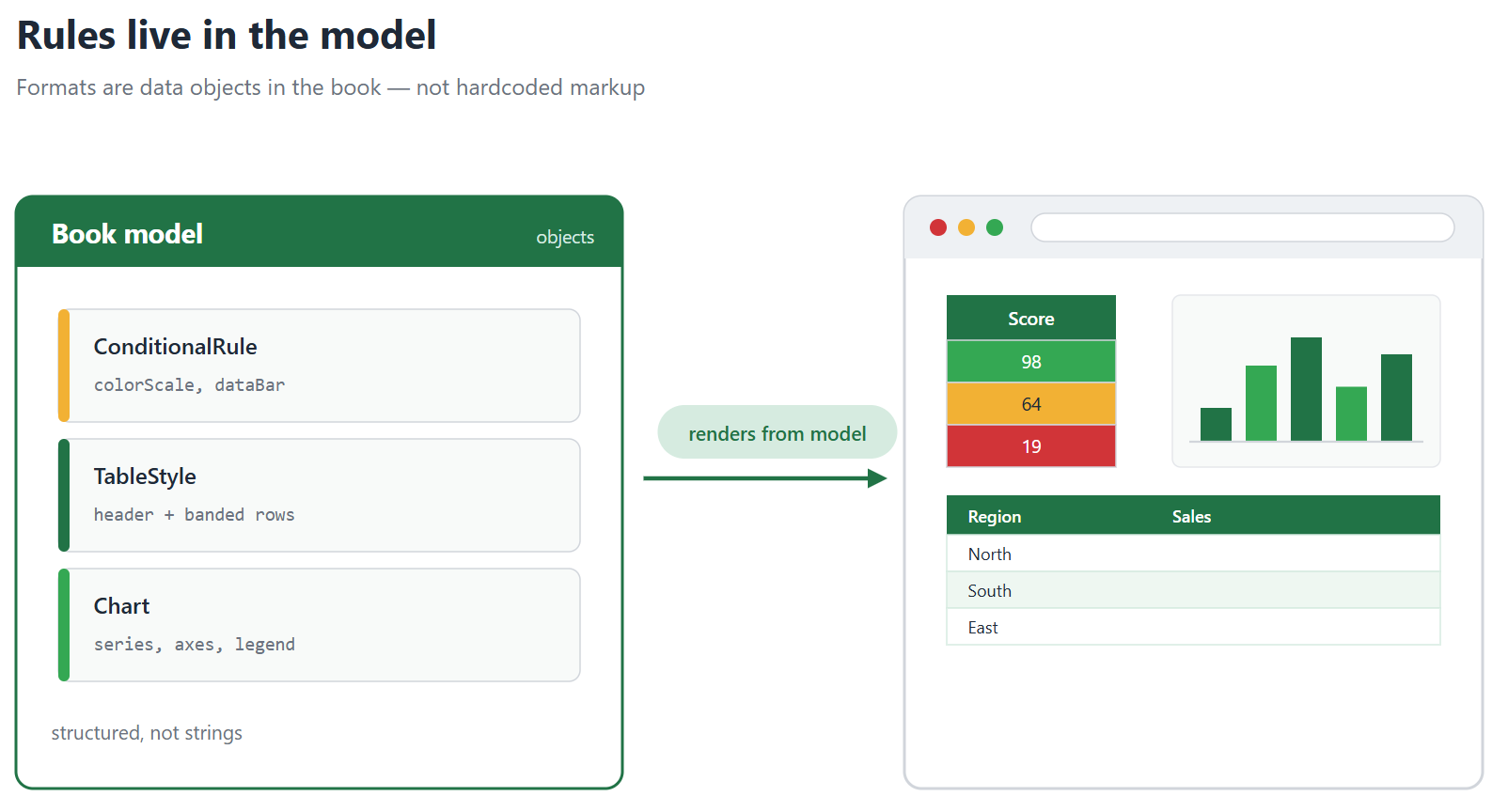
Out-of-the-box, Keikai's provides conditional formatting, table styles, and chart support among its Excel-compatibility features. These data objects are present in the book model rather than hardcoded into a static markup. This allows for formatted output to help bring the intended viewer experience to the browser.
Merged cells, freeze panes, widths
On top of cell styling, the spreadsheet model also tracks layout-level formatting. Features such as merged cells, frozen rows and columns widths are kept at model level for better fidelity and programatic access.
Keeping this information in the model is what lets the browser experience follow the same structure as the desktop one.
Section 3: Verifying and exporting without losing formatting
Round-trip back to xlsx/PDF
Keikai can export a book model back to an .xlsx file. Exporting to a file is the expected way to persist a book model and make it available to import back in keikai for future use.
This is done by obtaining an exporter from the Exporters utility and writing the book to a stream, which can then be persisted, downloaded, etc.
Exporter exporter = Exporters.getExporter();   // default: xlsx, pdf also available
Book book = ss.getBook();
exporter.export(book, fos);                     // fos is a FileOutputStream, or ByteArrayOutputStream for local processing
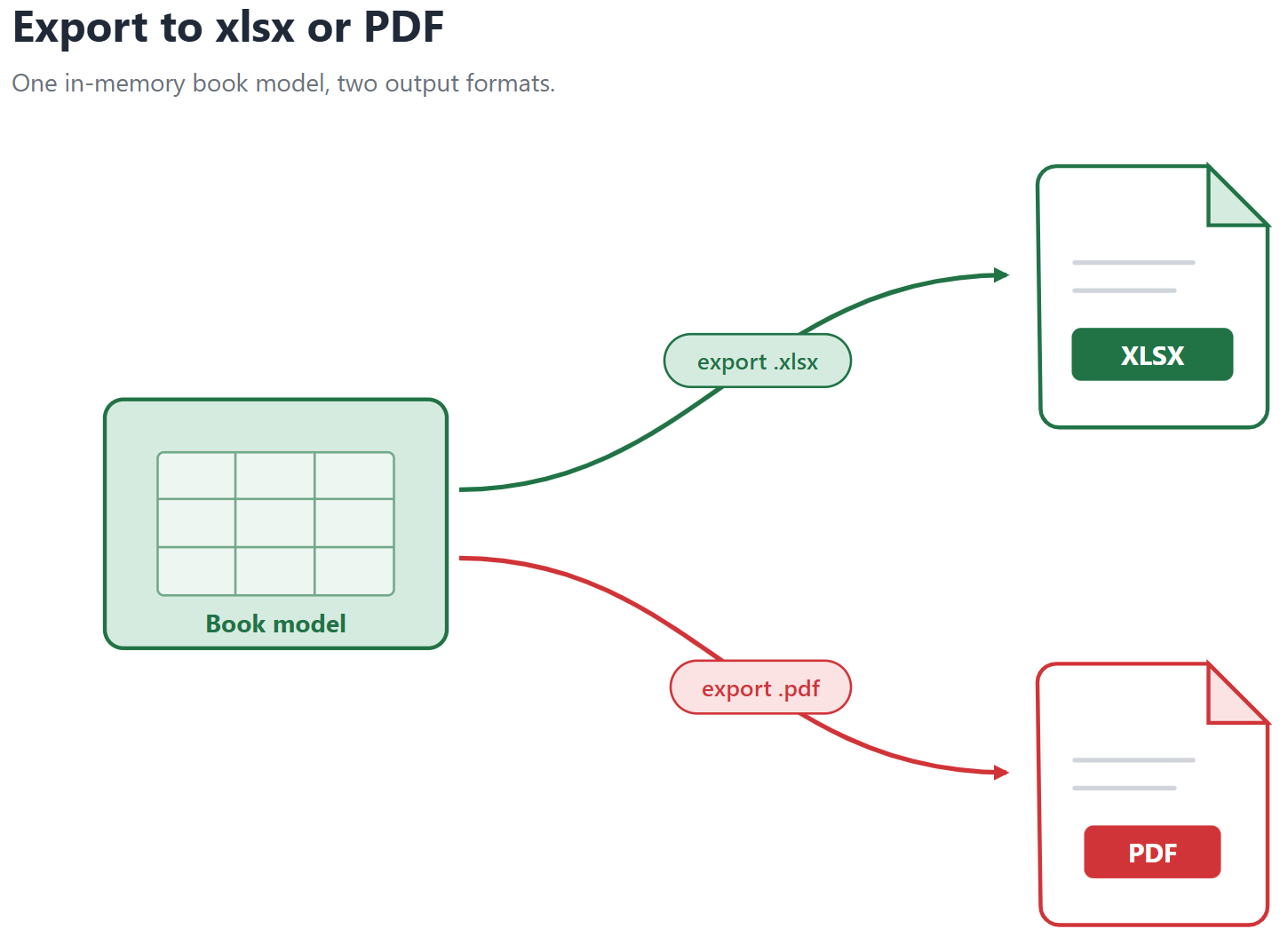
Exporters.getExporter("xlsx") and Exporters.getExporter("xls") select a specific format for compatibility purposes. Keikai can also exports to PDF via a dedicated PDF exporter (io.keikai.model.impl.pdf). Keikai exports styles and features from the book model. When exporting content, Keikai relies on the model data.
Takeaway
Spreadsheet compatibility involves thousands of Excel features accumulated over decades. While modern spreadsheet components can preserve most workbook formatting, formulas, and layout information, specialized features may vary between implementations. When evaluating a component, it is important to test the specific workbook features your application relies on.
Maintaining visual information in the browser requires a tool which doesn't treat the spreadsheet as just raw data. Keikai help bring the viewer's intended experience of the workbook to the browser. The styling included in the book model lets you read and adjust styles through the Range/CellStyle API, and exporting the model back to .xlsx or PDF.