application · Jul 30, 2026
Step-by-Step: Adding Excel-Like Data Validation to Your Java Web App
 Matthieu Duchemin
Developer, Keikai.
Matthieu Duchemin
Developer, Keikai.
Step-by-Step: Adding Excel-Like Data Validation to Your Java Web App
When a spreadsheet is the data-entry surface for your application, the quality of everything downstream — calculations, reports, exports, approvals — depends on what users are allowed to type into a cell. Excel solves this with data validation: dropdown lists, numeric and date bounds, and custom rules that reject invalid input at the point of entry.
This article walks through adding that same capability to a Java web application with the embedded Keikai spreadsheet component, from project setup to implementation, event-driven checks, import fidelity, and QA.

Section 1: Project setup
Add Keikai and embed the component
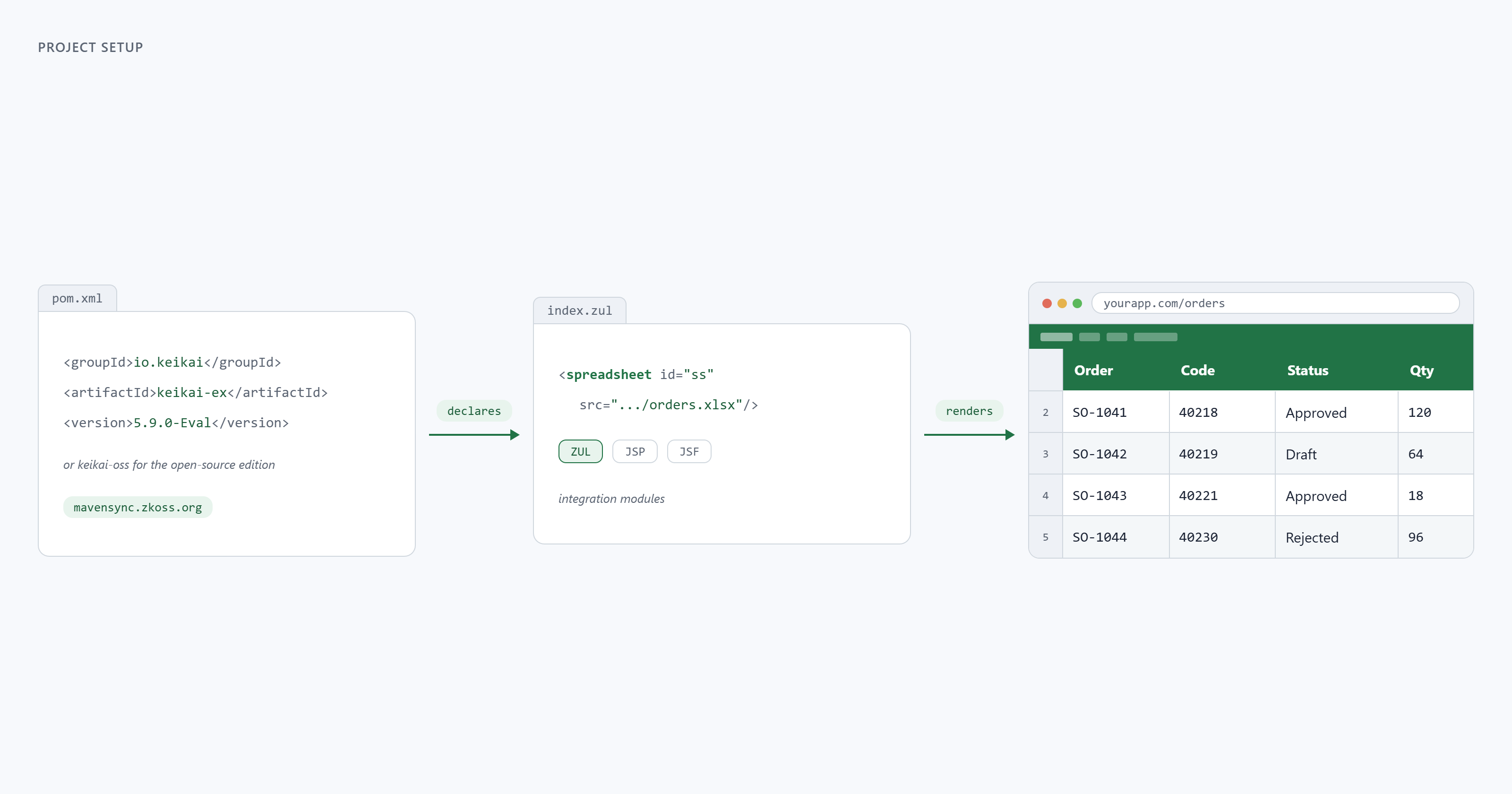
Keikai is a ZK component that delivers Excel-like spreadsheet functionality to a web application. Through keikai, we will display and manipulate a spreadsheet, including data validation. Keikai is distributed on the ZK/Keikai Maven repositories under the io.keikai group. There are two editions you can start from: the open-source edition (keikai-oss) and the extended/commercial edition (keikai-ex).
<repositories>
  <repository>
    <id>OSE</id>
    <url>https://mavensync.zkoss.org/maven2</url>
  </repository>
  <repository>
    <id>Keikai EVAL</id>
    <url>https://mavensync.zkoss.org/eval</url>
  </repository>
</repositories>

<dependencies>
  <dependency>
    <groupId>io.keikai</groupId>
    <artifactId>keikai-ex</artifactId>
    <version>5.9.0-Eval</version>
  </dependency>
</dependencies>
Since keikai is a component of a ZK page, the simplest host is a ZUL page declaring the <spreadsheet> tag. Keikai also offers JSP and JSF integration.
<zk>
  <spreadsheet id="ss" width="100%" height="600px"
               src="/WEB-INF/books/orders.xlsx"/>
</zk>
Loading a workbook programmatically
For anything beyond a static page, you can use java to load the workbook. That way, you can manipulate the server-side model. Importers.getImporter() returns an importer whose imports(...) method reads an .xlsx file into a Book java object; you then hand that Book to a Spreadsheet as its model.
Book book = Importers.getImporter().imports(new File("orders.xlsx"), "orders");
Spreadsheet spreadsheet = new Spreadsheet();
spreadsheet.setBook(book);
Any validation rules already defined in the .xlsx are imported with the workbook, so a file authored in Excel will be displayed with its existing validation dropdowns, numeric rules, and custom checks.
Where validation fits
When you apply validation rules to a spreadsheet, you should first identify which cells are user input and which are computed or reference data. Validation belongs on the editable input cells, while formula results and lookup tables generally do not require data review. This boundary keeps the rule set small and makes it easier to answer: "In which cells can a user write an incorrect value?"

Section 2: Implement the rules in Java
As already mentioned, any rules already present in your workbook will be imported with the xlsx file. This said, there are cases where you may want to programatically add, modify or remove validation rules directly in java code.
Keikai exposes validation through the Range API and the lower-level model API. The examples below use Range#setValidation(...) because it is the easiest way to add or replace a rule on a range.
Validation in Keikai mirrors Excel: a validation type (ANY, INTEGER, DECIMAL, LIST, DATE, TIME, TEXT_LENGTH, CUSTOM), an operator (BETWEEN, NOT_BETWEEN, EQUAL, GREATER_THAN, …), and one or two formulas that supply the bounds or list values.
Apply a dropdown list on a cell or range of cell
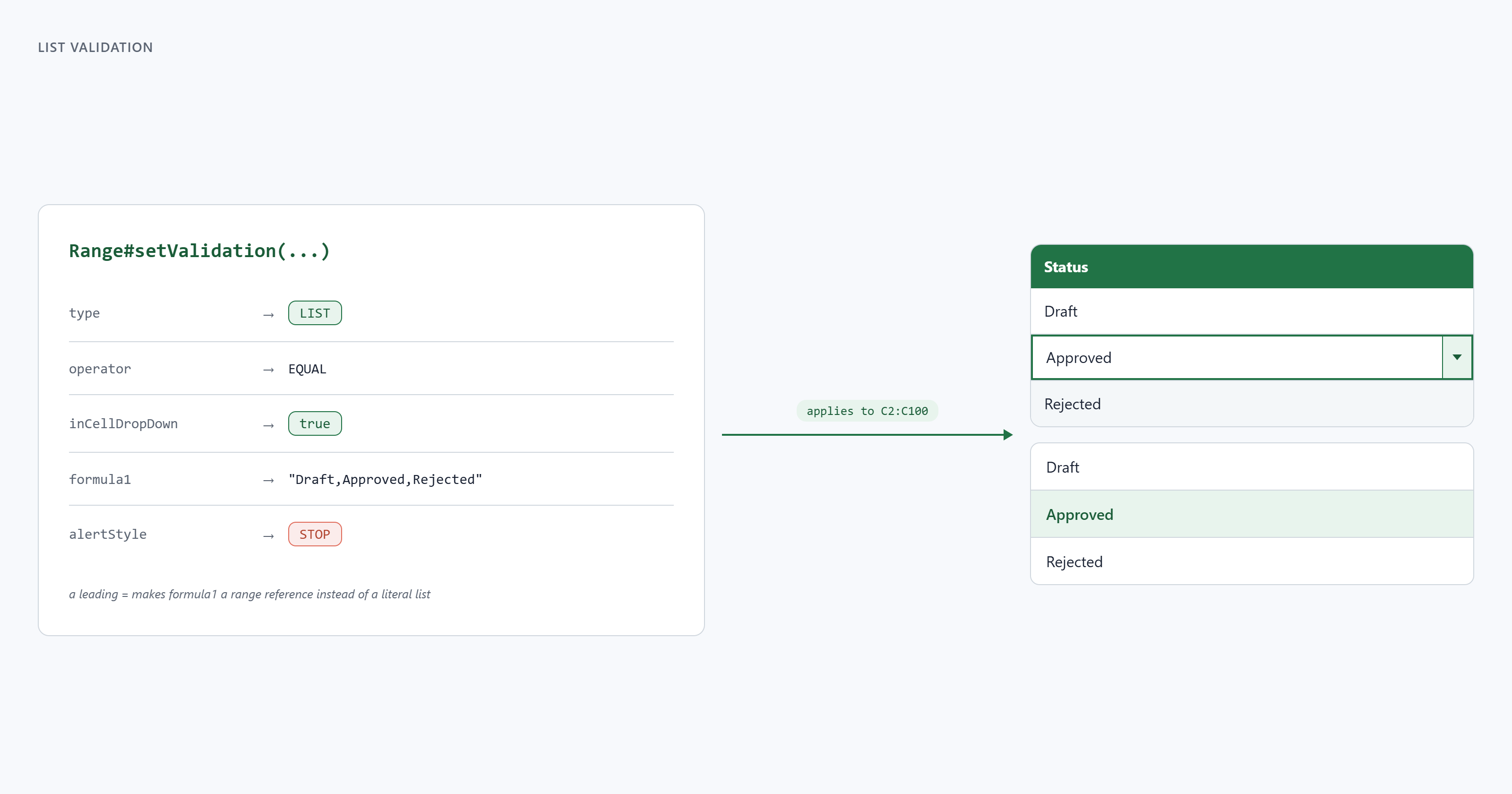
A dropdown is a LIST validation. formula1 is either a literal comma-delimited list or a reference to a range whose cells hold the allowed values. A leading = marks a reference formula instead of a literal list.
Sheet sheet = book.getSheetAt(0);
Range status = Ranges.range(sheet, "C2:C100");
status.setValidation(
    Validation.ValidationType.LIST,
    true,
    Validation.OperatorType.EQUAL,
    true,
    "Draft,Approved,Rejected",
    null,
    false, null, null,
    true, Validation.AlertStyle.STOP,
    "Invalid status", "Pick a value from the list");
The inCellDropDown flag shows the arrow inside the cell so users know they have a selectable list.
Add numeric and date constraints to a cell or range of cell
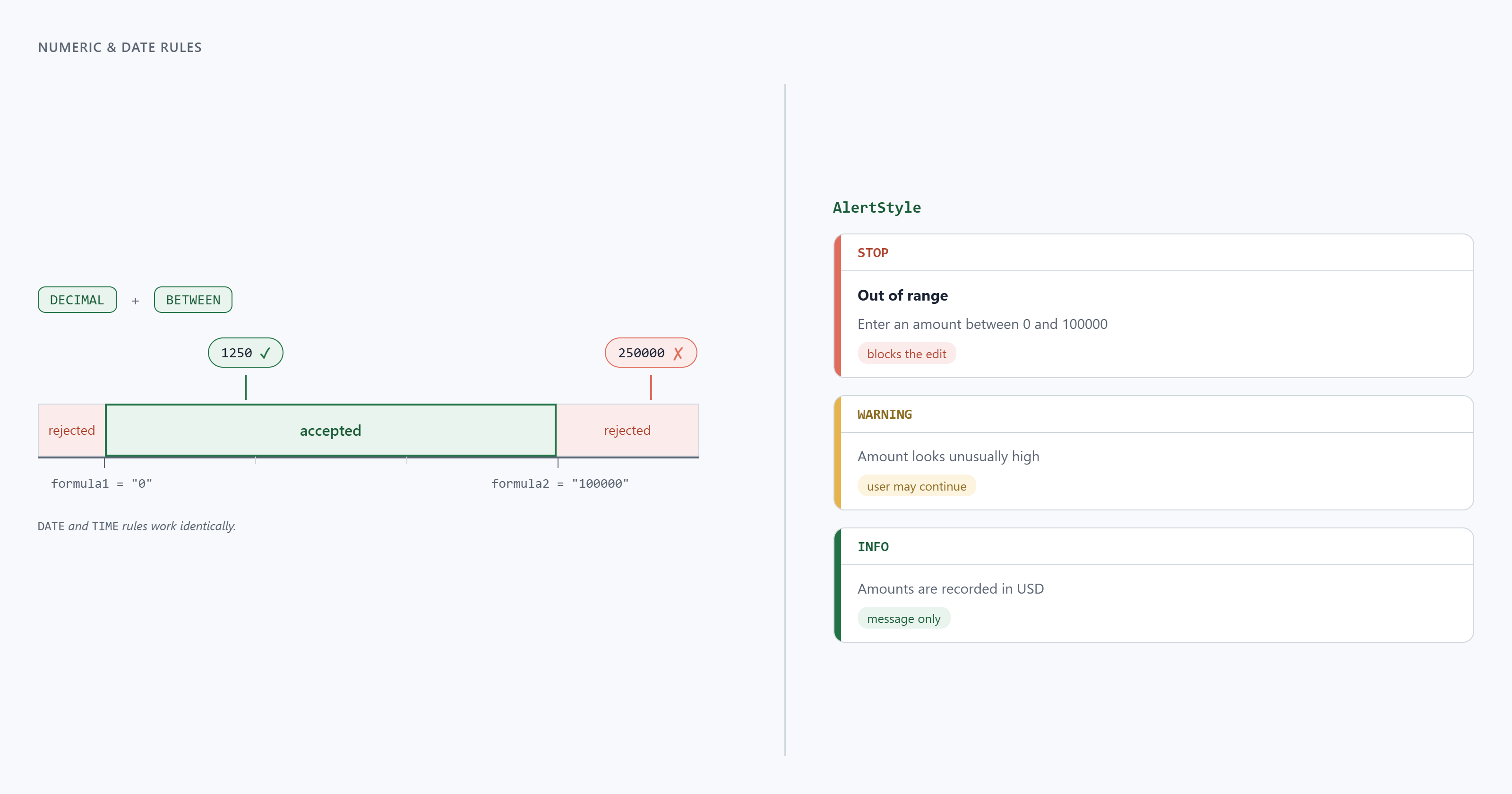
Numeric and date rules use an operator and one or two bound formulas. A DECIMAL rule with BETWEEN accepts values inside [formula1, formula2]; the bounds can be literals or formulas such as =A1 or =SUM(A1:B1).
Range qty = Ranges.range(sheet, "D2:D100");
qty.setValidation(
    Validation.ValidationType.DECIMAL,
    true,
    Validation.OperatorType.BETWEEN,
    false,
    "0", "100000",
    false, null, null,
    true, Validation.AlertStyle.STOP,
    "Out of range", "Enter an amount between 0 and 100000");
Date and time rules work the same way with ValidationType.DATE and ValidationType.TIME. The AlertStyle controls how strict the rejection is — STOP blocks invalid input, while WARNING or INFO let the user proceed with a message.
Wire a custom rule
Custom validation, that is to say, validation of complex rules, can be implemented through one of two supported paths:
- custom formula validation driven by an Excel formula. the
formula1argument in thesetValidationmethod is a formula returning a boolean "pass" or "fail" value, which is evaluated against the edited cell. - Editing event listeners, where server-side Java checks run after the user changes a cell.
A custom formula validation looks like this:
Range code = Ranges.range(sheet, "B2:B100");
code.setValidation(
    Validation.ValidationType.CUSTOM,
    true,
    Validation.OperatorType.BETWEEN,
    false,
    "=AND(LEN(B2)=5, ISNUMBER(VALUE(B2)))", //the formula
    null,
    true, "Format", "Codes are exactly 5 digits.",
    true, Validation.AlertStyle.STOP,
    "Invalid code", "Enter a 5-digit numeric code.");
If your business rule cannot be expressed as a spreadsheet formula, use editing-event listeners instead as described below.
Section 3: Server-side logic and event handling
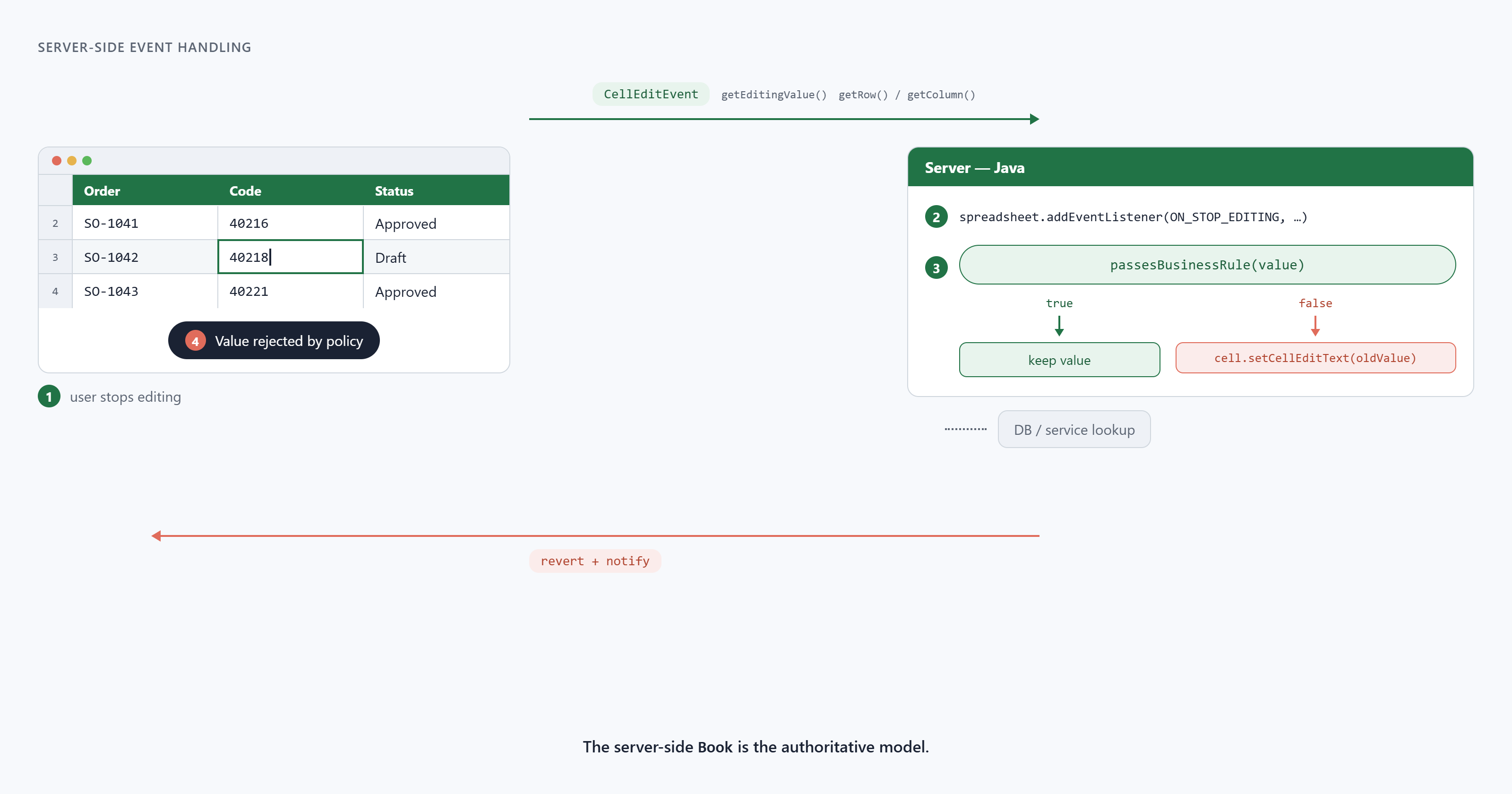
When a rule needs real Java code to run for validation purposes — for example, a database lookup, a cross-field invariant, or a service call, an API call, etc. — you can attach a listener to the spreadsheet edit events and enforce the rule directly in a Java event listener.
spreadsheet.addEventListener(Events.ON_STOP_EDITING, event -> {
    CellEditEvent edit = (CellEditEvent) event;
    Object value = edit.getEditingValue();
    if (!passesBusinessRule(value)) {
        Range cell = Ranges.range(edit.getSheet(), edit.getRow(), edit.getColumn());
        cell.setCellEditText(edit.getOldValue());//restore old value if validation fails
        Clients.showNotification("Value rejected by policy");
    }
});
This lets you combine declarative rules for common cases and custom Java validation for the complex cases, or for cases that require external data sources.
The model has final say over the data
Keikai's server-side Book is the authoritative model, so your validation logic should treat it as the source of truth. The displayed spreadsheet inside the browser is a view off that book, and a rule is only complete when the server-side model rejects, corrects, or accepts the data change.